E-Mail
E-mail – it’s convenient, cheap and easy. Today, it is the most rapidly growing means of communication. All e-mail programs are slightly different. Gmail, Hotmail, and Yahoo! are some popular e-mail programs. Almost all Internet Service Providers (ISPs) offer an e-mail address with every account. This is a basic introduction to e-mail. We will be using Gmail e-mail for this class. Gmail e-mail works similarly to other e-mail programs and most of the information should be transferable to other programs. Advertisements are used by Gmail to support its free e-mail service.
What is E-Mail?
E-mail is an electronic way to send or retrieve personal and/or business-related messages, including text and pictures.
How Does It Work?
Think of e-mail like the postal service. To receive e-mail, you must have an account on a mail server. This is similar to your mailing address where you receive letters.
Your message is sent from your computer to a server (like the post office) where the computer looks at the address (like the address on a letter) and then directs the message on to the server associated with the recipient’s e-mail account. Once it arrives at its destination mail server, the message is stored in an electronic mailbox (like your regular mail box) until the recipient retrieves it.
You can still receive e-mail while your computer is turned off. The mail server collects and stores your incoming e-mail until the next time you access your e-mail by opening your mailbox to retrieve your messages..
Understanding E-Mail Addresses
You can send e-mail to anyone in the world, as long as you have his or her e-mail address.
Example of an e-mail address: JSmith@gmail.com
An e-mail address has three main parts:
1. The user name comes before the “@” sign.(To type the “@” sign (also known as the “at-sign”), hold down the shift key, and press the “2” key at the top of the keyboard. Notice how there is the “@” sign above the Two…) When you sign up for an e-mail account, you’re usually asked to supply a user name (first initial and last name often used).
2. The domain name comes after the “@” sign. This refers to the mail server, the computer that stores your electronic mailbox. It’s usually the name of a company or organization.
3. Finally, there’s a dot (.) followed by three letters that indicate the type of domain. (.com, .edu, .net, .lib.in.us, etc.)
NOTE: When you are sending an e-mail, you must type the entire e-mail address including the user name, the @ sign, and the domain name. E-mail addresses are not case specific meaning that it does not matter if you capitalize a letter, or leave it in lower case. I.E. JDoe@Hotmail.com is the same as jdoe@hotmail.com. It is, however better to use lower case.
Further Information about E-mail
On the Internet, everything moves at light-speed. This includes E-mail. Thus, because E-mail can be sent and received so quickly, sometimes it is more useful to write in a conversational manner than in a formal letter style. However, E-mail can be a reflection of yourself, thus, one should not become “sloppy” at grammar, because it shows that you “don’t care.” So, always spell check your E-mail and use proper grammar and capitalize your I’s. Sometimes, one might forget to capitalize one, or you might make a typo. This is okay. Just don’t write the entire E-mail sloppily.
Getting a Gmail Account
We choose to teach you how to use Gmail because it is free, rich in features, and has a clean, easy to use interface. Gmail is a free email service provided by Google. It is free primarily because of advertisements, although these advertisements are small and non-intrusive.
How to sign up for Gmail E-mail
1. Begin at the Gmail home page: www.gmail.com
2. Where it says “New to Gmail? It’s free and easy.” Click on “Create an account.”
3. Begin typing in your personal Information, however be careful not to use a password others can guess and make certain that you can remember it. If you choose to write down your email password, make certain that you safe guard the paper with your password so that others are not able to find it.
4. Type in First Name and Last Name in their respective boxes.
5. Type in your desired user name. This will be your unique E-mail address. Some addresses might already be taken. Click on the Check Availability button to see if you can use the E-mail address you typed in. If you get an error, try changing your E-mail address. Continue to change the E-mail address until you see it is available after clicking on the “Check Availability” button.
6. Type in a password and write it down. This password must have at least 8 letters or numbers in it.
7. Retype your password for accuracy in the next box.
8. Next, if you are at your home computer, your computer can recognize that you are the sole user, and automatically log you into your E-mail (more on this later). If you are at a public computer, deselect the first checkbox under the second password button.
9. The next checkbox allows you to have a more “personalized” experience with the Google search engine by having it remember your search history and displaying websites that reflect your prior searching habits when a Google serach is performed in the future. Check this if you wish.
10. Select a secret question for which you will provide the answer. This is for if you forget your password, but know the answer to your secret question, you may enter the answer to the secret question and gain access to your account. If this ever happens, ask a friend or family member to help if you cannot resolve the problem.
11. If you have another E-mail address, feel free to enter it in. If not, enter bwsc.computer.group@gmail.com. If you forget your password, an email will be sent to this address confirming that you really want to change your gmail password.
12. Select your country.
13. Type in the Letters/Numbers that you see in the picture. This is for additional security for your account. You do not need to write the numbers/letters down. This may be hard to do, so be careful.
14. Click the “I accept, create my account” button.
15. And now you’re set up! Click on the “I’m ready – show me my account” hyperlink.
16. You’ll be directed to your inbox – and you’re done! Congratulations!
Tip: You will want to write down your password and E-mail address. Keep it in a safe place and memorize it as soon as possible.
Using the Actual E-mail Account
Every time you want to check your E-mail, you must enter your password and E-mail address. This is because your E-mail account can be accessed at any computer via the Internet (at gmail.com). Other people may use the same computer to check their E-mail as well. They would have to enter their password and E-mail address too, but it would be different than from your E-mail address and your password. Thus, each time you check your E-mail via the Internet, you must enter your own personal information and when you are finished, always Sign Out.
Logging on to Gmail
1. Type: www.gmail.com into the address box of the browser.
2. Press Enter.
3. Type your Gmail Username, if it is not already in the box.
4. Type your password.
5. Click Sign In.
Checking your mail
As soon as you log in, you will be directed to you inbox, where new mail will arrive!

Composing and Sending an E-Mail Message
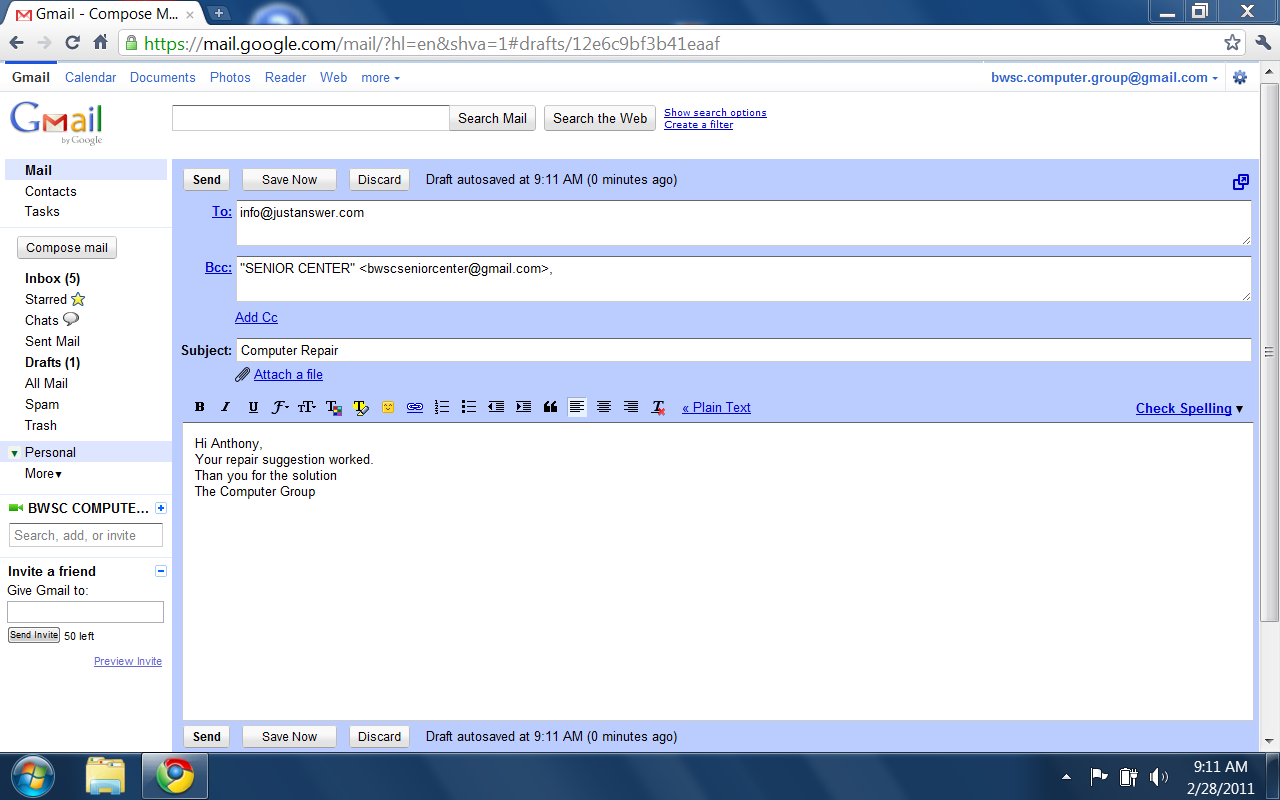
1. To create a new E-mail click “Compose Mail.” (At the upper left-hand side of the screen)
2. Type the recipient’s E-mail address in the “To:” box.
2.1. To send a message to more than one person, you may enter multiple addresses by placing a comma and space between each address. (E.g.: To: jdoe@aol.com, LTorwalds@hotmail.com, DKent@Company.com)
2.2. Make sure you enter the address correctly, or the message will be sent either to a different person or back to you. – just like the postal service!
3. Type the subject of the message in the “Subject:” box. Keep the subject to a word or phrase summarizing the content of your message. (E.g.: Subject: Today’s Work Progress)
4. Click with the mouse in the message box to move the cursor to that space.
5. Type the body of your message.
6. When you are finished typing your message and wish to send it, click “Send.”
How long does it take for a message to be delivered?
It may only take a few seconds for a message to be delivered. The computer sends a message through the Internet → then the E-mail message is sent to your mail server which sends it to the recipient’s mail server → then to the recipient’s computer when s/he opens her or his mailbox. However, it may take longer if you are sending an email message with an attachment or Gmail’s servers are overloaded.
Reading an E-Mail Message
To read a particular message, click near the subject of the E-mail.
Note: Unread messages in your Inbox will have an unopened envelope in front of it and will be tinted or highlighted.
Replying to a Message
1. Open the message you wish to reply to.
2. Click the “Reply” button. The program will present you with a message already addressed to the sender. The subject line will state “Re:” and then the old message’s subject. You will most likely leave the subject line as it is.
3. Place your cursor in the box above the text to which you are replying.
4. Begin typing your reply.
5. Click “Send” when you are finished typing your message and wish to send it.
*Note the difference between “Reply” and “Reply All.” Clicking the “Reply” button will send your reply only to the original sender of the message. Clicking the “Reply All” button will send your reply to everyone who received the original message.
Forwarding a Message
1. Open the message you wish to forward to another person.
2. Click the down arrow next to the word Reply.
3. Click on “Forward”
4. Type the recipient’s address(es) in the “To:” box.
5. Type a note above the forwarded message (optional).
6. Click “Send”
Deleting a Message
In earlier E-mail programs, space that E-mails could take up was limited. Nowadays, because of cheaper storage, space is not really a problem. Gmail allows you to save every single E-mail you receive (and make it searchable). When you want to clean up your inbox, select old E-mails in the select-box and then click archive. They will no longer show up in your inbox, but will be available when you do a search.
Searching for Old Mail
One of the most popular features with Gmail is the ability to search for specific E-mails among all the E-mails that you have received. (assuming that it is either in your inbox or you archived it) To search for an E-mail, go to the top search bar and type in your search terms – this might include the subject of the E-mail, words in the E-mail, or possibly the sender of the E-mail. (This is very similar to searching the Internet with the Google Search engine!) Click Search E-mail and the results will be displayed.
Note: When you have finished your E-mail session, be sure to click Sign Out. This will close your E-mail account. This is especially important when you are using a public computer.
E-Mail Privacy
E-Mail is not completely private. You might consider E-mail much as a postcard. Don’t send something you wouldn’t want everyone to see. For example, it’s probably not a good idea to put your credit card number, checking account number, or your social security number in an E-mail message. It is possible for messages to be intercepted by those who shouldn’t be reading them, especially in a work environment. The chances of someone reading your messages are slim, but just be aware of the possibilities. And remember, once you’ve sent a message, there’s no getting it back. It’s on its way for good!
How to Find Someone’s E-Mail Address
Again, you must have someone’s E-mail address to send them an E-mail letter. If you do not have their E-mail, you cannot send anything to them, just like if you do not have someone’s mailing address, you cannot mail anything to them via the post office. The best way to find someone’s E-mail address is to ask them directly.
SPAM!
Spam is the Internet equivalent to “junk mail.” Advertisers send very descriptive and sometimes fake advertisements that try to get your credit card number or your bank pin number. They send it out to millions of E-mail addresses. This is a very important thing to pay attention to. Spam is usually bad, and malicious, so never reply to spam, even if it has an unsubscribe link. One might suppose that this gets you off their advertising list, but in reality, it only confirms the accuracy of your E-mail address and even more spam will come your way.
Tips for Avoiding SPAM
- Gmail already has SPAM protection, and all suspected SPAM goes to the “Spam Folder.”
- If there is mail from someone you don’t know, and the subject line is questionable, don’t open those E-mails. They may be SPAM or contain Viruses.
- Never give out your E-mail address to a website or someone you do not know.
- Never open SPAM.
- Never buy anything offered by SPAM
E-Mail Definitions
Attachment – a text file or image, such as a photograph, sent as part of an E-mail message.
Bcc – a “blind” carbon copy, a feature where if you “bcc” someone, the original receiver of the message will not know that a copy of the message will be received by the individual who is “bcc”-ed.
Bouncing – when a message is not delivered because of incorrect address, misspelling, etc. and is sent back to you by the E-mail system. Sometimes there will be a delay in receiving notification of bounced mail. The system usually tries for several hours before giving up.
Cc - a carbon copy, a feature which will send an copy of your E-mail to the “cc”-ed person.
E-Mail – electronic mail – the transmission of messages over a network.
E-mail Acronyms - Some acronyms you may see:
BTW – By the way.
LOL – Laughing out loud.
ROFL – Rolling on the floor laughing.
TTYL -Talk to you later.
Emoticons - Also referred to as smileys:
(These symbols help convey the tone, or emotion of an online message).
Examples: Click the Smiley on the tool bar and select:
Happy
Sad
Wink
Shocked, surprised
$-) Just won the lottery
Folders – (Inbox, Draft, Sent, Trash, etc.) can be used to organize your messages.
“Forwarding” a Message – Sending a message on to another person.
Header – the section of an E-mail message that includes To, From, Subject, Cc, and attached fields.
Inbox – where incoming mail is stored in your E-mail account.
Internet – A network of computers that carries data and makes the exchange of information possible. Allows access to the World Wide Web and E-mail functions.
ISP (Internet Service Provider) – The company that provides access to the Internet (like a gateway between you and the Internet.) E.g., American Online (AOL). Almost all ISPs offer an E-mail address with every account.
Mail server – a computer in a network that acts as a post office, sorting incoming mail and forwarding outgoing mail.
Netiquette (Network Etiquette) – Acceptable practices of using various Internet resources. Example: DON’T USE ALL CAPS. IT APPEARS AS IF THE WRITER IS SHOUTING.
Online service – a company that maintains an exclusive network and provides subscribers with services like E-mail and chat rooms.
Web-Based email – When email is not downloaded to an application on a user’s computer but rather viewed online through a web browser such as Firefox or Internet Explorer. Examples of web-based email are Gmail, Yahoo, and Hotmail (also known as Windows Live Mail).
Signature Line - A set of 4 – 8 lines of text placed at the end of a mail message to provide the reader with the author’s contact information, favorite quote, special of the month, autoresponder/web site address, etc. The signature line is composed and placed into the E-mail software’s signature file for automatic appending.
SPAM - To send unsolicited commercial E-mail, usually in large amounts and indiscriminately, to discussion groups or subscriber bases.
Trash – Where your deleted messages are stored for a short time before they are periodically deleted for good. You may choose to delete messages permanently yourself by clicking “empty trash now.”
WWW – World Wide Web – a subset of the Internet. A collection of inter-linked documents. Remember, the Internet can exist without the web.


